Should you request an MFA reset from us, a local Near Me facilitator or your Waiting Area’s Service Admin, under most circumstances you will be have to set up MFA by email or authenticator app again at your next platform login.
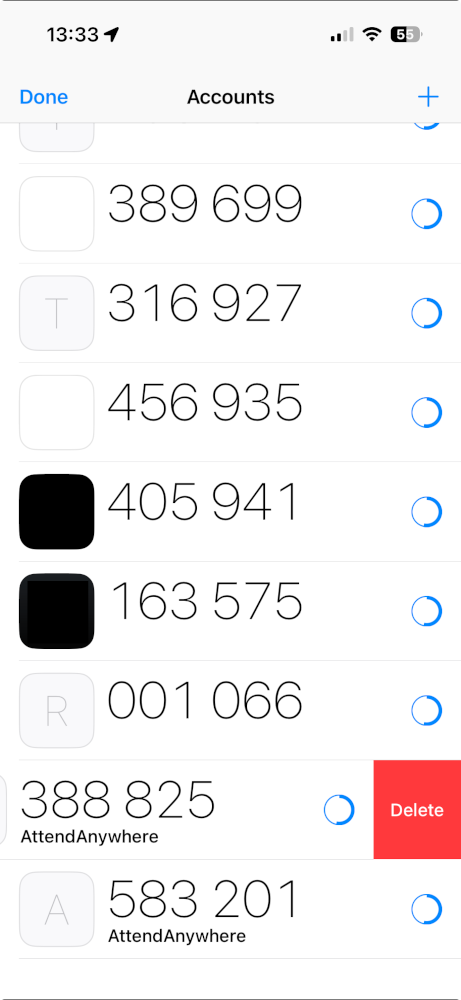
If you had previously chosen to generate your one time codes by authenticator app and choose to use the same app again, you will end up with two app entries for Attend Anywhere until you delete the older one. For most authenticator apps, deleting an entry can be achieved by swiping the unwanted entry from right to left and tapping delete. At that point you may also be prompted to confirm you wish to delete the entry.
Don’t forget, you may need to scroll down to see the correct entry. In almost every case you’ll want to remove the top Attend Anywhere entry as it will likely be the oldest and now redundant one.
Most NHS supplied mobile phones will need to use Microsoft’s Authenticator.
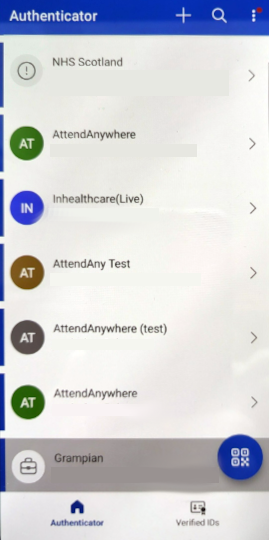
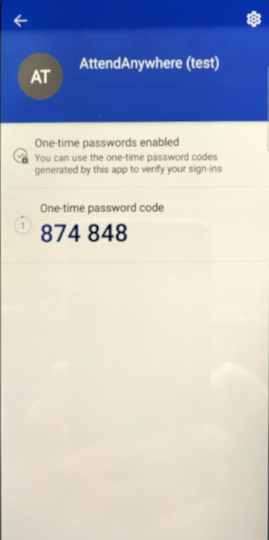
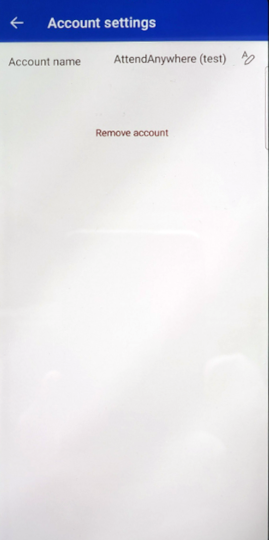
That’s slightly more complicated as you must first select the entry (i.e. tap the top Attend Anywhere setting in image one) to modify it – image 2 – using the Settings button (top RHS of image 2). At that point you can tap Remove Account (image 3).