Set up email authentication for Near Me access
For most NHS staff, using email for authentication is simple: if you have a device that is suitable for joining Near Me calls, you should be able to access your email on that device too.
Access to NHS Scotland email accounts on a smartphone or tablet may require that the Microsoft Edge browser is installed and used. Almost any browser can be used to access NHS Scotland email on computers running Windows or macOS.
Note: It is very rare but we have had reports of some NHS email accounts that have been unable to receive external emails from some organisations including those from the platform – donotreply@attendanywhere.com. Before trying to enable MFA by email, please try sending the caller link to your Waiting Area directly from the platform to the email address you use for login to the platform. If you are unfamiliar with the process, please see this video.
As an alternative to email authentication, we have a guide for enabling authentication via an app here.
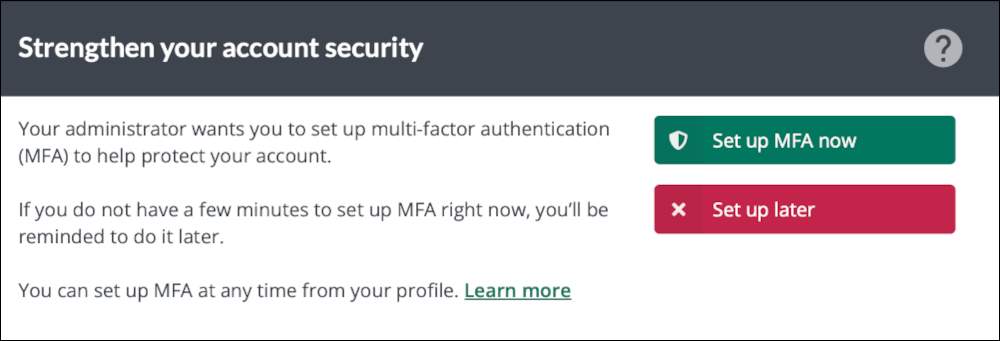
Whether you are prompted to enable authentication at login depends on how your Organisation Administrators have configured Near Me. [MFA will become compulsory for NHS staff using the platform from late March 2026.]
If you are prompted to enable authentication, decide on the method you wish to use and follow the on-screen instructions.
Even if you are not prompted, we encourage you to enable MFA yourself by following the steps below.
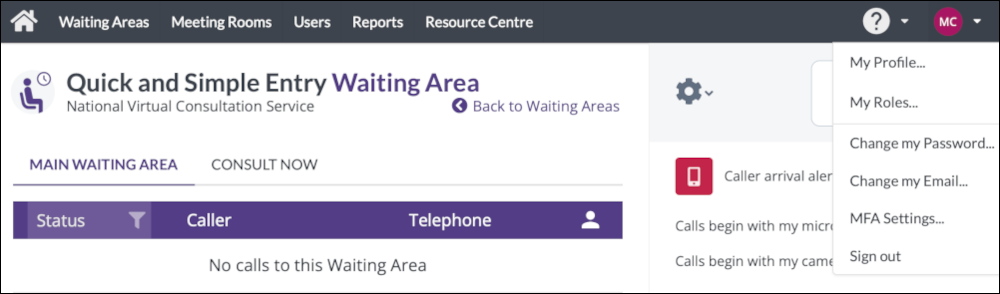
Once logged in, click on your initials/picture icon (top right-hand side of your screen) and choose MFA Settings… from the drop-down menu.
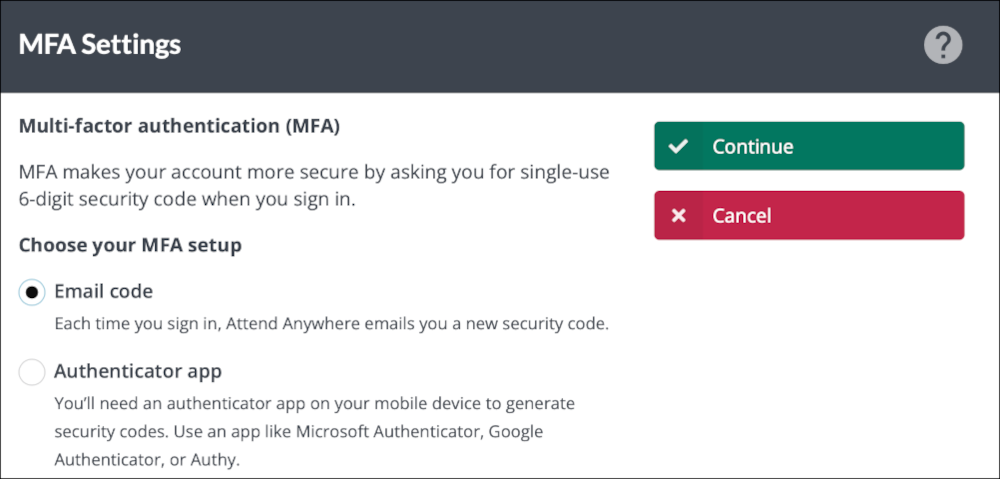
Selecting Email code will send MFA codes to the email address you use to log in to the platform.
For many, receiving an email code will be the easiest option.
Click Continue.
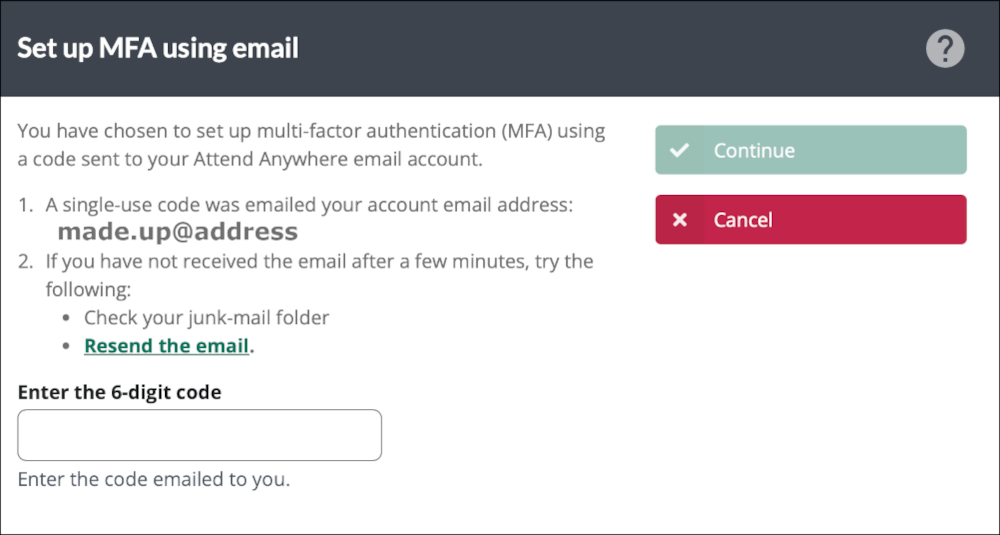
You should now receive an email stating you are setting up MFA. It will provide a code to proceed. Enter that code when you see this screen. [The email will have been sent from donotreply@attendanywhere.com. Please check your email’s junk, spam or delete items folders in case it is filtered. Contact us if you continue to have problems.]
Click Continue.
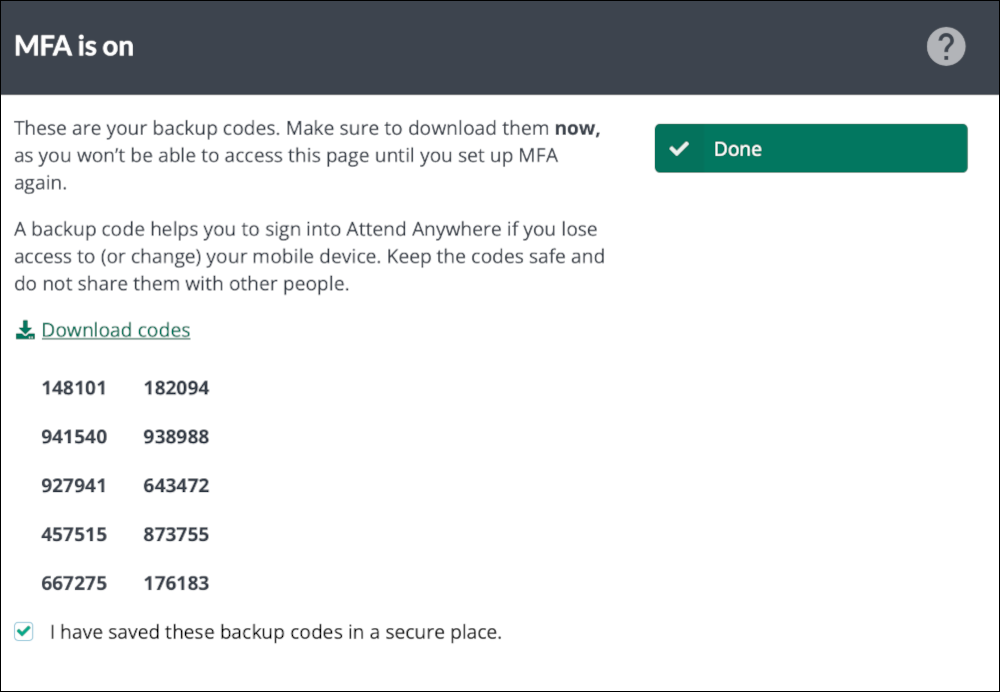
You will be given backup codes to save and use should you be unable to access your authentication method. Please click Download codes to receive a text file containing the ten, single-use codes. Tick the box to confirm you have downloaded the file and stored it somewhere secure.
Click Done.
The next time you login, you will have an additional screen asking you to authenticate. Details below.
On your next login, you will be presented with the standard login screen, asking for your email address and password.
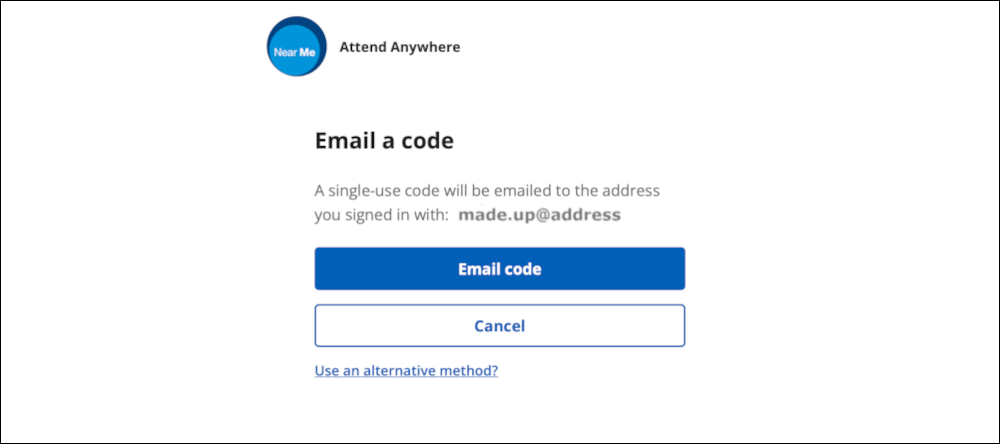
After that you will see this additional screen where you can request the authentication code is sent to the email address you use for the platform.
Click Email code.
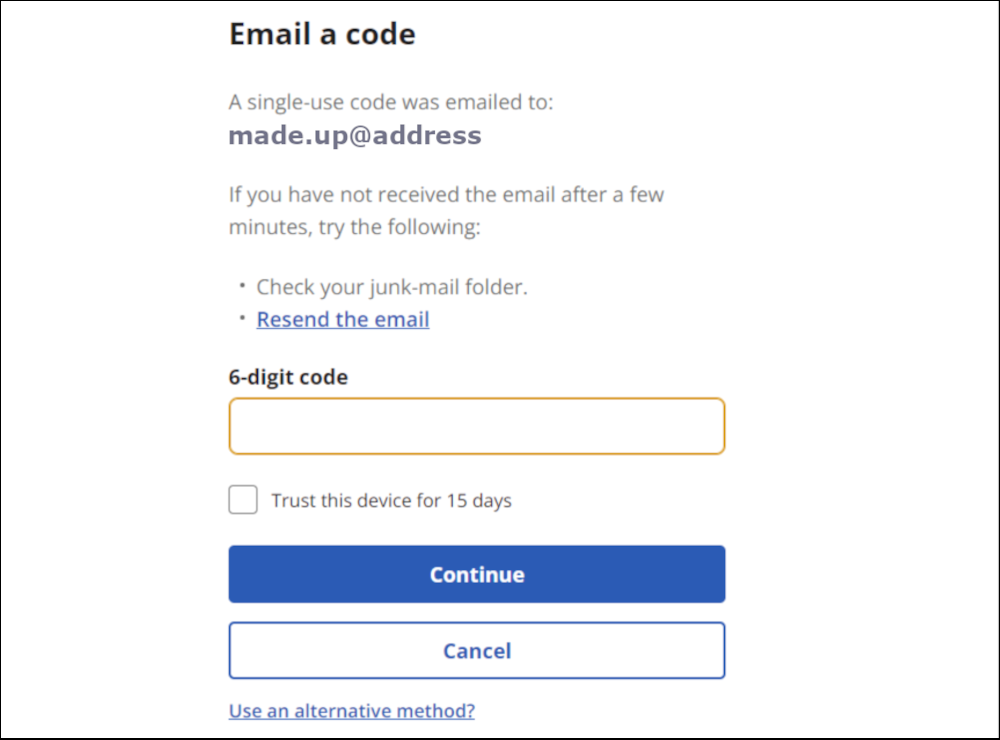
Enter the code you received on the next screen and click Continue to access the platform.
If you are the only person who uses the device to access Near Me you may wish to select Trust this device for 15 days. However, please note that this setting will be cleared if your browser’s cookies are deleted (which may be done automatically by your board, most likely on a daily basis).